Automate Your Inbox with AI: Gmail, Claude, and Zero Worry
Set up a hands-free email management system using AI tools you already have access to.
Before reading, test yourself
Question 1 of 4
What is the first step to automate your Gmail inbox with AI?
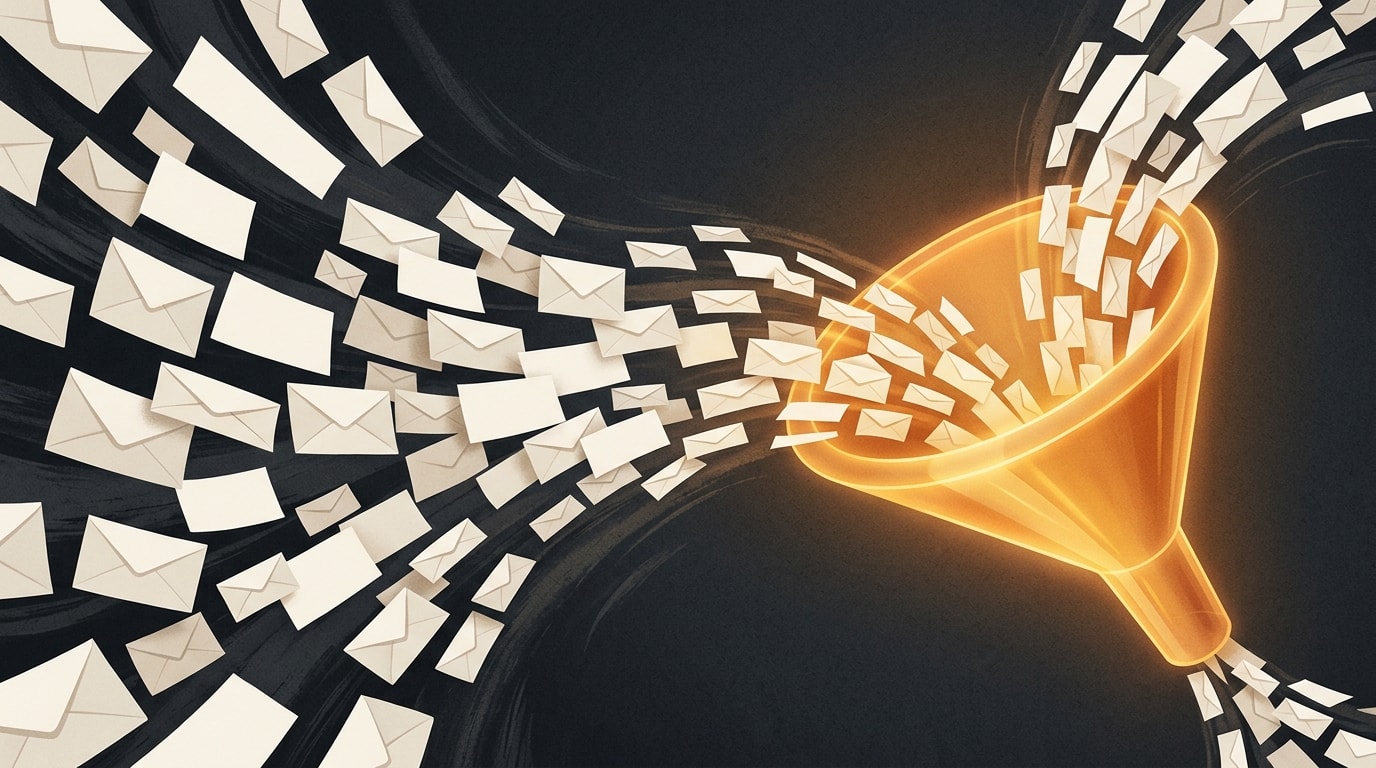
You check your inbox and feel a knot in your stomach. 47 new emails since lunch. Three from your boss, two from clients, and a bunch of newsletters you swore you'd unsubscribe from. Sound familiar?
You don't need to read every email. You need a system that handles the noise and surfaces what matters. That's where AI comes in.
In this guide, you'll learn how to automate your Gmail inbox using Claude AI, with zero coding and zero worry. By the end, you'll have a setup that filters, drafts replies, and even archives the clutter.
Why your inbox is broken
Your inbox wasn't designed for the volume you face today. It's a firehose of requests, promotions, and notifications. You waste mental energy deciding what to act on.
The fix isn't willpower. It's automation. AI can triage your email faster than you can, and with fewer mistakes.
What you need: Gmail, Claude, and a little glue
The core ingredients are simple:
- Gmail (any account, free or Workspace)
- Claude AI (Anthropic's assistant, via claude.ai or API)
- A no-code automation tool like Zapier, Make, or n8n
If you haven't explored no-code automation yet, check out this guide on no-code automation with AI: Zapier, Make, n8n combined with AI. It covers the basics of connecting tools without writing code.
Step 1: Label and filter incoming email
Before AI touches your inbox, you need structure. Gmail's filters and labels are your first line of defense.
Create labels
Create these labels in Gmail:
AI/Priority, for emails that need your attentionAI/ReadLater, for newsletters and updatesAI/Trash, for spam, receipts, confirmations
Set up filters
Go to Gmail Settings > Filters and create rules:
- From your boss or key clients: Skip inbox, apply label
AI/Priority - From newsletters: Skip inbox, apply label
AI/ReadLater - From no-reply addresses: Skip inbox, apply label
AI/Trash
This pre-sorts about 60% of your email. The remaining 40% goes to the main inbox for AI processing.
Step 2: Connect Gmail to Claude via automation
Now you'll use a no-code tool to send each new email to Claude for analysis. We'll use Zapier for this example, but Make or n8n work similarly.
Create a Zap (automation)
- Trigger: New email in Gmail (with label
Inboxor no label) - Action: Send email content to Claude
- Prompt for Claude:
Analyze this email. Classify it as: priority, read later, or trash. If priority, suggest a short reply. If read later, summarize in one sentence. If trash, say nothing.

Email subject: {{subject}}
Email body: {{body}}
- Output: Claude returns a JSON object with
classificationandreplyorsummary.
Handle the response
Add a second action in your Zap to process Claude's output:
- If
classificationis "priority": Apply labelAI/Priority, send you a notification with the suggested reply - If
classificationis "read later": Apply labelAI/ReadLater, add the summary to a Google Doc - If
classificationis "trash": Archive the email, no notification
This runs every 15 minutes on a free Zapier account. You can increase frequency with a paid plan.
Step 3: Let Claude draft replies
For priority emails, Claude can draft a response. You review and send. No one wants an AI sending emails without your approval.
Set up a draft action
In the same Zap, after Claude returns a reply, use Gmail's "Create Draft" action. The draft stays in your Drafts folder. You open it, tweak if needed, and hit send.
Example prompt for drafting:
Write a professional reply to this email. Keep it under 100 words. Use a friendly but concise tone. Sign with "Best, [Your Name]".

Original email: {{email}}
Why this works
You save 30 seconds per email. If you get 20 priority emails a day, that's 10 minutes saved. Over a month, over 3 hours.
Step 4: Achieve zero inbox every Friday
This is the ultimate goal. A clean inbox at the end of the week. With AI, it's achievable.
Weekly review routine
Every Friday afternoon, run a Zap that:
- Gathers all emails labeled
AI/ReadLater - Sends them to Claude for a weekly digest
- Claude writes a summary of the most important points
- The summary is emailed to you, and the
AI/ReadLaterlabel is archived
You get one email instead of dozens. You stay informed without the clutter.
For a complete system, read zero inbox workflow with AI: how to empty your mailbox every Friday. It walks you through the exact steps to maintain inbox zero.
Step 5: Handle sensitive emails with care
Not all emails should be processed by AI. Financial details, legal matters, or personal messages need human eyes only.
Set up exclusion rules
In your Zap, add a filter:
- If email subject contains "confidential" or "legal": Skip AI processing, apply label
Manual - If email is from your lawyer or accountant: Skip AI processing, apply label
Manual
You handle these manually. The AI never touches them.
Privacy considerations
Claude processes email content. If you're concerned about data privacy, use Claude's API with a data retention policy of zero days. Anthropic offers enterprise plans with data controls.
Advanced: Build a personal AI agent
If you want more control, consider building a custom AI agent. This goes beyond simple Zapier flows. You can train an agent to understand your preferences, writing style, and decision rules.
A full blueprint is available here: build a personal AI agent in one weekend: full blueprint. It's a weekend project that gives you a fully customized email assistant.
What an AI agent can do that Zapier can't
- Learn from your corrections: If you tweak a draft, the agent remembers
- Handle multi-step workflows: Forward an email to a team member, create a task in Asana, and send a Slack notification
- Understand context: Recognize when an email thread is urgent based on history
Common pitfalls and how to avoid them
Over-automation
Don't automate everything. Keep a manual check on priority emails. AI is a helper, not a replacement.
Poor prompts
If Claude gives bad replies, refine your prompt. Be specific about tone, length, and format. Test with 10 emails before going live.
Ignoring spam
AI can misclassify spam. Keep Gmail's built-in spam filter active. Use AI as a second layer, not the first.
Where to start
You don't need to build the perfect system on day one. Start small.
- Pick one email type to automate: newsletters or low-priority notifications.
- Set up a simple Zap that labels and archives them.
- Add Claude drafting for one category, like client inquiries.
- Review weekly and tweak your prompts.
Within a week, you'll see a difference. Within a month, your inbox will feel manageable.
What's next
Once your inbox is under control, apply the same approach to other repetitive tasks. AI can automate calendar scheduling, document summaries, and even social media responses.
The key is to start. Pick one automation today. Your future self will thank you.
Ready to build your AI-powered inbox? The tools are free or low-cost. The time investment is a few hours. The return is hours saved every week.
Read next
Zero Inbox Workflow AI: Empty Your Mailbox Every Friday
Learn a zero inbox workflow AI system that helps you process, organize, and respond to emails automatically so you can end every Friday with an empty mailbox.

Summarize a Zoom Meeting in 2 Minutes with AI: Full Workflow
Learn how to summarize a Zoom meeting with AI in under 2 minutes. This full workflow covers transcription tools, AI summarizers, and automation tips.

5 tasks AI does better than you (and you should delegate starting tomorrow)
AI outperforms humans in data sorting, email triage, editing, scheduling, and research. Delegate these 5 tasks tomorrow and reclaim hours each week.